Basic Operations
This guide will help you get familiar with the Automatonix Drone Testing System simulator interface.
This guide will take you through the practical aspects of navigating and interacting with the ATDS Simulator, building upon the foundational understanding you've gained. With a focus on the interface and operational mechanics, we aim to ensure you can effectively utilize the simulator for educational purposes.
Interface Components
Understanding the ATDS Simulator's interface is crucial for effective navigation and interaction. Here are the key components you'll frequently use:
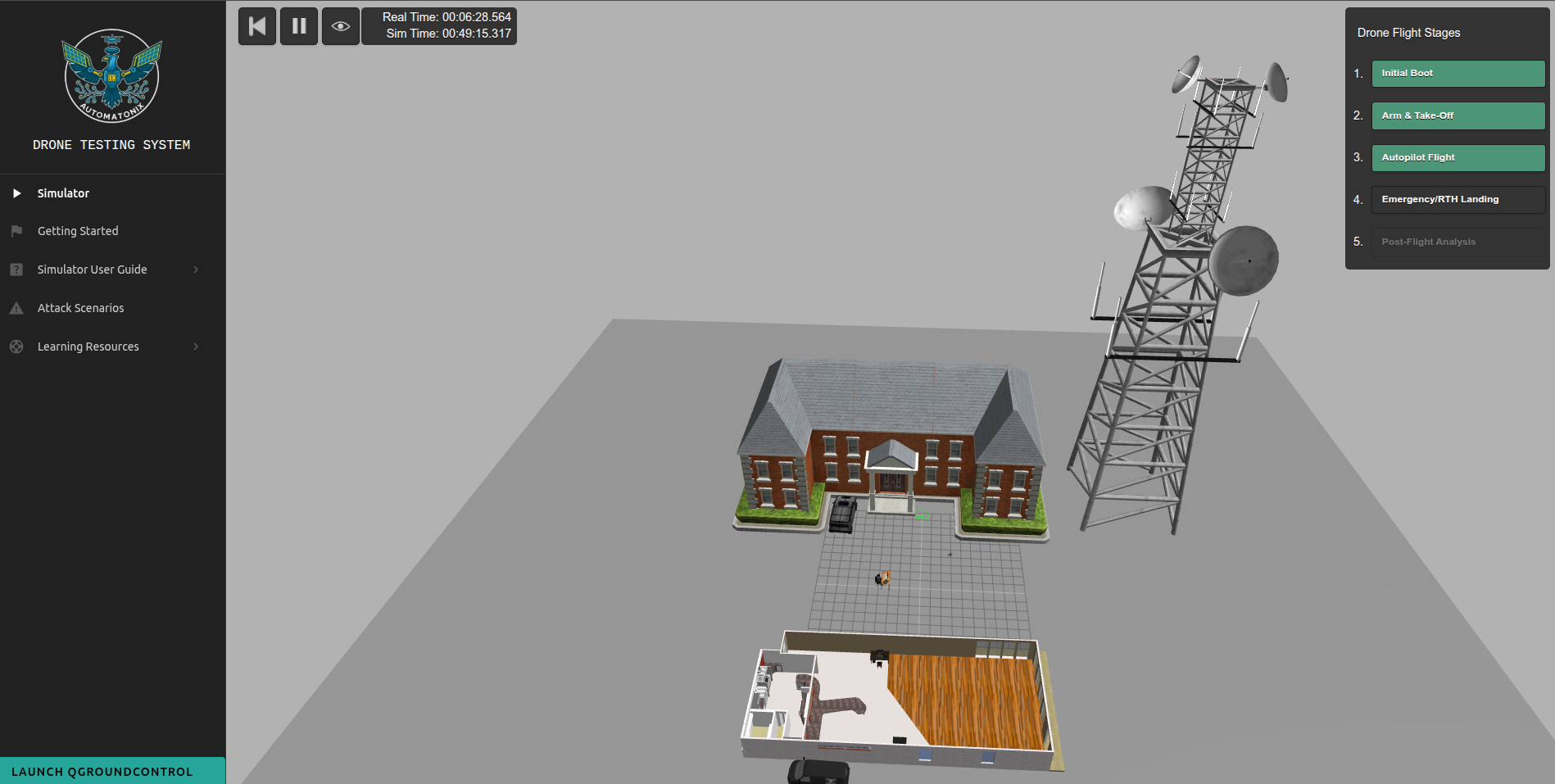
The focal point of your interaction, displaying the drone and its environment in real time. Here, you'll control and observe the drone's operations.
Resets the simulator to its initial state, ideal for starting fresh experiments or resetting after the drone crashes.

Halts the simulation, allowing for paused observation and planning without losing progress.

Clicking this eyeball icon resets the camera to the default view in the Main Simulator Window, helpful for regaining orientation.

Launching QGround Control
QGroundControl is an open-source ground control station (GCS) software that allows users to plan, control, and monitor unmanned aerial vehicles (UAVs). It provides real-time flight data, mission planning, and an intuitive interface for managing UAV operations.
Click "Launch QGroundControl" button on the Simulators Side Nav Bar

QGroundControl is used for mission planning, UAV configuration, real-time monitoring, and data analysis. Users can create flight paths, adjust UAV settings, and monitor telemetry data during flights. It supports various UAV platforms and provides tools for safe and efficient UAV operations.
QGroundControl may fail to launch due to several reasons:
- Unsupported Architecture: Ensure your system meets the necessary hardware and software requirements (ARM / Apple Silicon is currently not supported).
- Missing Dependencies: Make sure all required libraries and dependencies are installed.
- Permissions: Verify that you have the necessary permissions to run the application.
Note: Automatonix Drone Testing System does not need to use QGroundControl to function. An alternative tool is used in the ground-control-station container known as MAVProxy to substitue for all core QGroundControl functionality.
Flight State Buttons
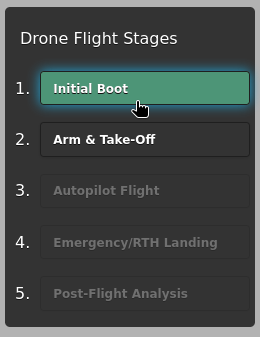
Automatonix Drone Testing System encompasses a range of flight states that are essential for simulating real-world drone operations, crucial for constructing a variety of drone hacking scenarios.
The ability to simulate these various flight states is fundamental in ATDS, as it allows users to test and exploit different aspects of drone operations. By understanding how a drone behaves in each state, offensive security professionals can better strategize their attack vectors, identify weaknesses in the system, and develop measures to mitigate potential security threats in real-world drone systems.
These states include:
This simulates the drone's startup sequence, where all systems are initialized. Clicking this initial boot will simulate you "pressing" the power on button on the drone flight controller, allowing for the companion computer to establish a connection to it. This phase is critical for security/safety checks, calibration and ensuring communication protocols are setup before flight.
The phase where the drone transitions from a stationary state to airborne, testing the responsiveness of flight controls and the integrity of take-off protocols. Note: This may take some time to complete as the drone requires GPS & EKF3 to be ready)
Represents the drone's ability to navigate autonomously based on predefined waypoints or dynamic commands, a vital state for exploring vulnerabilities in navigation and control systems.
Simulates the drone's emergency protocols, automatically returning to a home location upon triggering fail-safes or loss of control signals, which can be a target for exploitation in hacking scenarios.
This state involves the handling of all data collected during the flight, including telemetry and logs, making it an important phase for understanding data exfiltration and integrity attacks.